
You pay for Claude. You open the chat box. You type a question, read the answer, and close the tab. That is the whole relationship.
One account holds four separate tools. Three of them do things chat cannot: read a folder of your own files, build software that actually runs, and make the visual instead of describing it. Skip those and you use a quarter of what you bought.
What you will be able to do
Name the four Claude tools and say in one word what each is for.
Open each one, and know which plan you need first.
Point Claude at a folder of your own files and get real work back.
Ask Claude to build you a small tool without writing any code.
Run Claude inside a free code editor so your files and your AI sit in one window.
This is for anyone with a Claude account, free or paid. Some of the four need a paid plan, and the lesson says which before you get attached to one you cannot open.
The proof behind this
Liz Elliott built four software products with AI help: PRISM, AutoViral, UPRISE Social Studio, and Profounder, and she never studied computer science. That happened because she stopped treating AI as a chat box.
What this lesson is
Lesson 2.2 of the free AI for Entrepreneurs course, in Module 2: Choosing Your AI.
Most people meet Claude as a chat box, use it like a smarter search engine, and stop there. Chat is one door. There are four.
Picture a gym membership. One card, four rooms. The weights room, the pool, the studio, the sauna. If you only ever walk into the weights room, the card is not broken. You are just using a quarter of it.
Claude works the same way. The four rooms are Chat, Cowork, Code, and Design. They live in different places and they are good at different things.
Chat is for thinking. You talk, it talks back, nothing gets saved or sent anywhere.
Cowork is for doing work. It reads your files, runs jobs with many steps, and hands you a finished document instead of instructions for making one.
Code is for building. It writes, tests, and fixes software on its own. You do not need to know how to code. You describe what you want.
Design is for creating. You describe a deck, a page, or a set of graphics, and it builds the actual visual while you watch.
One warning before you go looking. Not all four are on every plan. Free accounts get Chat. The others need a paid plan, and the heavier ones need a higher paid tier. Check what your plan includes before you get attached to a tool you cannot open yet. Nothing in this lesson is worth upgrading for until you have tried the thing you already have.
New here? Use the free AI for Entrepreneurs course outline to read this series in the best order.
Do it
Part 1: Chat, to think
Where to find it: claude.ai, or the desktop or mobile app.
This is the plain chat box. Three things worth doing with it this week:
Explain something confusing. Paste in the thing you have been avoiding. A lease. A contract. A tax form. Bloodwork. A confusing email. Then use the plain-English prompt below. This is usually faster and clearer than searching for it.
Test a big choice before you make it. Pick something you are weighing up: leaving a job, signing a lease, launching an offer. Run the pre-mortem prompt. It surfaces the problems while you can still avoid them.
Talk through what is in your head. Use voice and just dump it out. Then ask Claude to reflect it back, find the patterns, and help you name what you are dealing with. This is not care and it is not treatment. If you are struggling, talk to a real person. Use this for the ordinary noisy days, not the hard ones.
Part 2: Cowork, to do work
Where to find it: the Claude desktop app, then Cowork in the sidebar. It also runs on web and mobile, so a job you start on your laptop can keep going while you are out, and it can ask for your approval from your phone.
Cowork does not answer questions. It finishes jobs. Three to try:
Build a Monday morning briefing. Connect Gmail, Calendar, and Slack, then run the briefing prompt below. You read one page with your coffee instead of opening four apps.
Build a dashboard that stays current. Point Cowork at your sales tracker or a spreadsheet and ask for a live dashboard showing your top numbers, the change week over week, and the trend. A live dashboard pulls fresh data each time you open it, instead of freezing the numbers from the day you made it.
Turn meeting notes into follow-ups. After a meeting, hand it your notes. It can pull out the action items, draft a follow-up email for each person with their own tasks in it, and write the agenda for next time.
Cowork can read and write real files on your computer. That is the point of it, and it is also the risk. Start it on a folder of copies, not your only copy of anything. Read what it says it is about to do before you approve.
Part 3: Code, to build
Where to find it: claude.com/product/claude-code. It also runs on web and mobile, so you can start a job from your phone and review it when you get back to your desk.
Claude Code writes, tests, and fixes software on its own. You describe what you want in plain English. Three builds worth trying:
A tracker you keep looking for and never find. A meal planner. A workout log. A content idea inbox. A price comparison sheet. A habit tracker. It can build the whole thing, including where the data lives and how you log in.
A weekly job you keep doing by hand. Two examples are in the prompts below. These are the kind of small automations people normally pay a developer to set up.
A small internal tool. Look at the little software subscriptions you pay for every month, the ones costing roughly thirty to a hundred dollars. A project tracker, a time logger, a client intake form, an invoice generator. Some of those can be built once and run cheaply. Not all of them. Hosting, updates, and backups are real work, so treat this as an experiment before you cancel anything.
From Liz's playbook: Liz Elliott is not an engineer and never studied computer science. She built four software products with AI help: PRISM, AutoViral, UPRISE Social Studio, and Profounder. "You do not need to know how to code" is not a slogan here. It is the normal path now.
Part 4: Design, to create
Where to find it: claude.ai/design.
Design works like a creative director. You describe what you need and it builds the visual, with a live preview while it works. Save your brand colors and fonts once, and everything after that can match them.
Three things to make:
A pitch deck. Use the deck prompt below, then export to PowerPoint or Canva to finish it.
A one-pager you can email. An investor one-pager, a service offer, a media kit, a course outline. One clear sentence in, one clean PDF out, instead of writing another long email.
A reusable set of social graphics. Use the templates prompt, then export. Later you swap the text instead of rebuilding the design.
Part 5: The fifth place, if you want more control
The desktop app is one window with limited ways to arrange things around your real files. If you want your files, your AI, and your other tools in one place, run Claude Code inside VS Code.
VS Code is Visual Studio Code, a free app from Microsoft. No trial, no credit card, Mac and Windows. It was built for developers, but you do not need to be one to use it this way. You still type to Claude in plain English.
You only need three places in it: the Extensions panel, the File menu, and the Claude side panel.
Set it up once:
Go to
code.visualstudio.com. Click download and install it like any other app.Open VS Code. On the left edge, click the icon that looks like four small squares. That is the Extensions panel. The shortcut is
Cmd+Shift+Xon Mac,Ctrl+Shift+Xon Windows.In the search box, type
Claude Code. Check that the publisher is Anthropic before you install, so you do not pick up a lookalike.Click the blue Install button and wait a few seconds.
Sign in with the Claude account you already use. Claude opens in a side panel next to your files.
You do this once. After that you just open VS Code, open your folder, and use the side panel.
Use it day to day:
Top menu, File > Open Folder. Pick the folder holding what you are working on. Now Claude can see those files.
Click into the Claude side panel and type what you want in plain English.
It works on the real files in that folder and shows you what it did.
Claude in this setup can create, change, and delete real files on your machine. Before you point it at anything you care about, make a copy of the folder. Read what it proposes before you approve it.
Why bother: you are not stuck with one AI. Other AI tools have their own VS Code extensions, and each gets its own side panel in the same window. The best tool for your work changes over time, and this way you can run two side by side and compare on the same files.
Five add-ons worth having. Install any of them the same way: open Extensions, search the name, click Install.
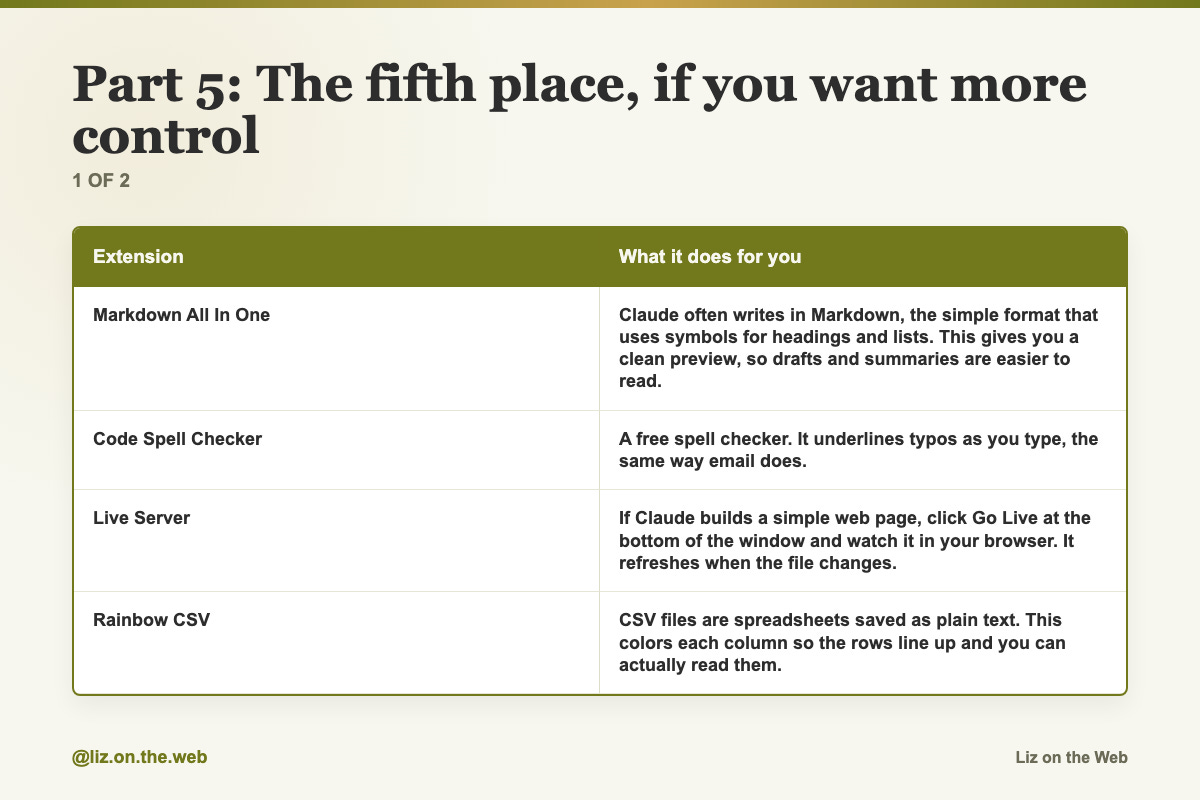
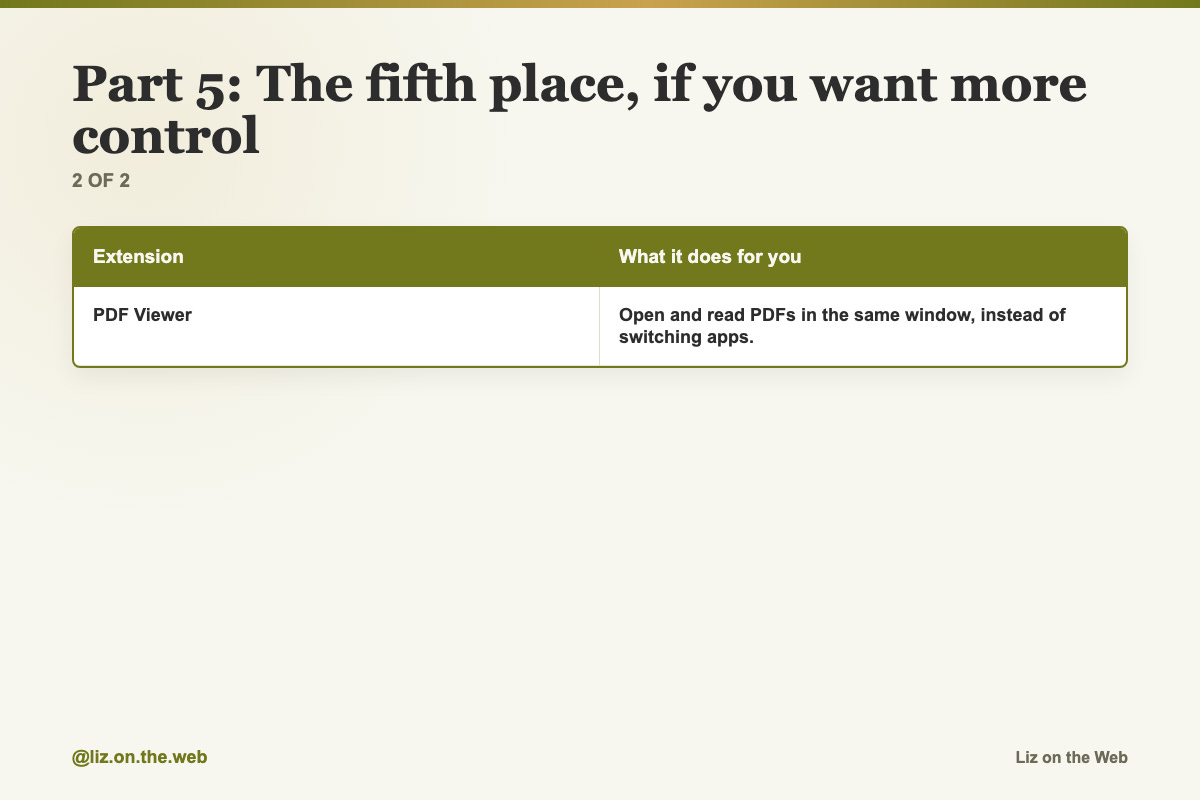
Extension / What it does for you
Markdown All In One: Claude often writes in Markdown, the simple format that uses symbols for headings and lists. This gives you a clean preview, so drafts and summaries are easier to read.
Code Spell Checker: A free spell checker. It underlines typos as you type, the same way email does.
Live Server: If Claude builds a simple web page, click Go Live at the bottom of the window and watch it in your browser. It refreshes when the file changes.
Rainbow CSV: CSV files are spreadsheets saved as plain text. This colors each column so the rows line up and you can actually read them.
PDF Viewer: Open and read PDFs in the same window, instead of switching apps.
Install the ones that solve a real problem for you. Skip the rest.
The shortest test: make a new empty folder on your desktop, open it in VS Code, drop in three documents, and ask Claude to do something simple with them. That one test tells you whether this setup suits you.
Copy and paste
Chat: explain a confusing document
Paste the document first, then this.
ELI5. What does this actually mean and what should I be worried about?Chat: pre-mortem a big decision
Describe the decision, then run this before you commit to anything.
Pretend it's 6 months from now and this decision blew up. Walk me through exactly why.Cowork: Monday morning briefing
Run this after you have connected your email, calendar, and chat app.
Pull what happened over the weekend, today's meetings, and the 5 emails I actually need to reply to.Code: a weekly automation
Use either of these as the shape for the repeat job you want handled.
Every Monday, pull my calendar, format it as a one-pager, and email it to my team.Whenever a new lead comes in via my form, draft a personalized response.Design: a pitch deck
Fill in the brackets and run it in Design.
Build me a 10-slide pitch deck for [your business], in [your brand colors], with [your specific sections].Design: a social template pack
Use this once, then reuse the templates by swapping the text.
Build me 5 Instagram templates in my brand: quote post, carousel cover, carousel content, promo, testimonial.VS Code: two starter asks
Type either of these into the Claude side panel after you open a folder.
Read these three notes and write me a one-page summary.Rename these files so the dates come first.Watch out
You only ever open Chat
Chat is useful and it is one quarter of what you are paying for. The tools that do work, build things, and make designs are behind different doors. Open one of the other three this week.
You assume everything is on your plan
Cowork, Code, and Design are gated by plan tier, and the tiers change. Check what your account includes before you plan a workflow around a tool you cannot open.
You use the wrong Claude for the job
Do not ask Chat to behave like Cowork. Do not ask Code to behave like Design. Chat to think. Cowork to do. Code to build. Design to create.
You ask tiny questions
These tools get better the more real material you give them. Hand over the document, the notes, the spreadsheet, and the goal, then ask for the finished thing you actually want.
You skip opening a folder
In VS Code and in Cowork, Claude only sees what you point it at. If you never open a folder, it is guessing from whatever you paste.
You point it at your only copy
Cowork and Claude Code change real files. Copy the folder first. Review what they propose before approving. There is no undo button on somebody else's machine.
You try to learn all of VS Code on day one
You need three places: the Extensions panel, the File menu, and the Claude side panel. Everything else can wait forever.
Check yourself
[ ] I can name all four Claude tools and what each is for.
[ ] I checked which of them my plan actually includes.
[ ] I used Chat on one confusing document.
[ ] I opened Cowork, or I know why my plan cannot.
[ ] I asked Claude Code for one small thing and saw what came back.
[ ] I made one thing in Design.
[ ] If I set up VS Code, I opened a folder and got real work back from the side panel.
[ ] I made a copy of any folder before letting an AI edit it.
Do this now
Pick the confusing document you have been avoiding. Open Chat, paste it in, and run the ELI5 prompt.
Keep going
Next in AI for Entrepreneurs:
Part 8: Fast or deep: picking a model per task
Part 9: ChatGPT and Claude, compared fairly
Part 10: Your starter stack, and what to ignore
Every part of this course sits in reading order in the free AI for Entrepreneurs course outline.
This part is free, start to finish. Subscribing keeps the rest of the course coming and opens the paid parts.
Tell me in the comments which of the four you had never opened, and I will point you at the right next part.