
You typed write me an email. You got back something a stranger could have written. You closed the tab and decided the hype was hype.
Three things went wrong that day and none of them were the tool. No context, the wrong first task, and an old product. People run that same bad first week once and treat it as a verdict for years.
What you will be able to do
Explain why a short request gives you a plain answer, and fix it in one line.
Set up a free account and run a first task that is not "write me an email".
Write a prompt with all five parts: role, task, format, examples, and limits.
Build a Project that holds your role, your voice, your priorities, and your rules.
Follow a seven day plan that adds one thing a day and ends with a saved setup.
This is for anyone starting from scratch, or restarting after a bad first try. Free accounts are enough for the whole week.
The proof behind this
Liz Elliott built four software products with AI help: PRISM, AutoViral, UPRISE Social Studio, and Profounder. She is not an engineer and never studied computer science. Everything she runs started the way this week starts.
What this lesson is
Lesson 1.4 of the free AI for Entrepreneurs course, in Module 1: What AI Actually Is.
Plenty of people try AI once, get a bland answer, and quietly decide it is overhyped. Almost always, three things went wrong, and none of them were the tool.
The first is context. If you type "write me an email," the AI has no idea who you are, how you write, who the email is for, or what you want to say. It fills the gaps with the most average version of everything. Asking a stranger to write your email would go the same way.
The second is the first task. Most people start by asking AI to write something from nothing. That is one of the harder jobs to do well. It is much stronger at analyzing data, summarizing long documents, comparing options, finding patterns, organizing a mess, brainstorming, and research.
The third is the tool. People judge everything they hear about AI by one old experience with one old product.
Here is the frame that fixes all three. Treat AI like a very smart colleague who started at your company this morning. Sharp, fast, and completely ignorant of your job, your style, your customers, and your goals. You would not hand that person a one-line instruction and expect a finished piece of work. You would tell them the situation first.
More context in, better work out. Less context in, generic work out. That is the whole trick, and it does not change as the tools change.
Stanford's AI Index report found that generative AI reached 53 percent of the world's population within three years. So you are not late. Most people are still learning to hold this thing.
From Liz's playbook: Liz Elliott is not an engineer and did not study computer science. She built four software products with AI help: PRISM, AutoViral, UPRISE Social Studio, and Profounder.
New here? Use the free AI for Entrepreneurs course outline to read this series in the best order.
Do it
Part 1: Pick your starter tools, and add them one at a time
Four tools cover almost everything a beginner needs. Do not learn them all at once.
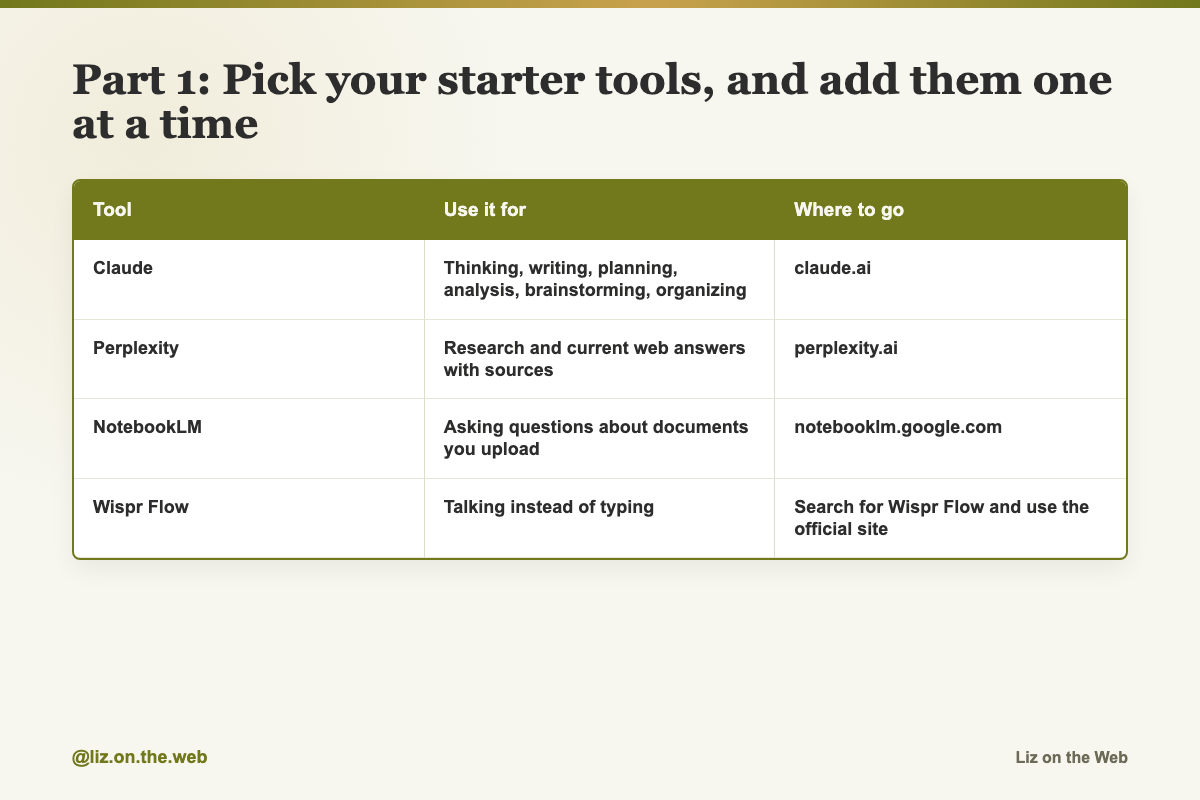
Tool / Use it for / Where to go
Claude
Use it for: Thinking, writing, planning, analysis, brainstorming, organizing
Where to go:
claude.aiPerplexity
Use it for: Research and current web answers with sources
Where to go:
perplexity.aiNotebookLM
Use it for: Asking questions about documents you upload
Where to go:
notebooklm.google.comWispr Flow
Use it for: Talking instead of typing
Where to go: Search for Wispr Flow and use the official site
The order matters. Use Claude on its own for a week. Add Perplexity when you next need to look something up. Add NotebookLM when you have a long document you have been avoiding. Add Wispr Flow when you get tired of typing.
Claude has a free plan that covers a lot. The paid plan has been around $20 a month and adds more usage plus extra features. Check the current price and what your plan includes before you pay for anything.
Part 2: Learn the five parts of a prompt
Every strong prompt has five parts. Miss one and you can usually feel it in the answer.
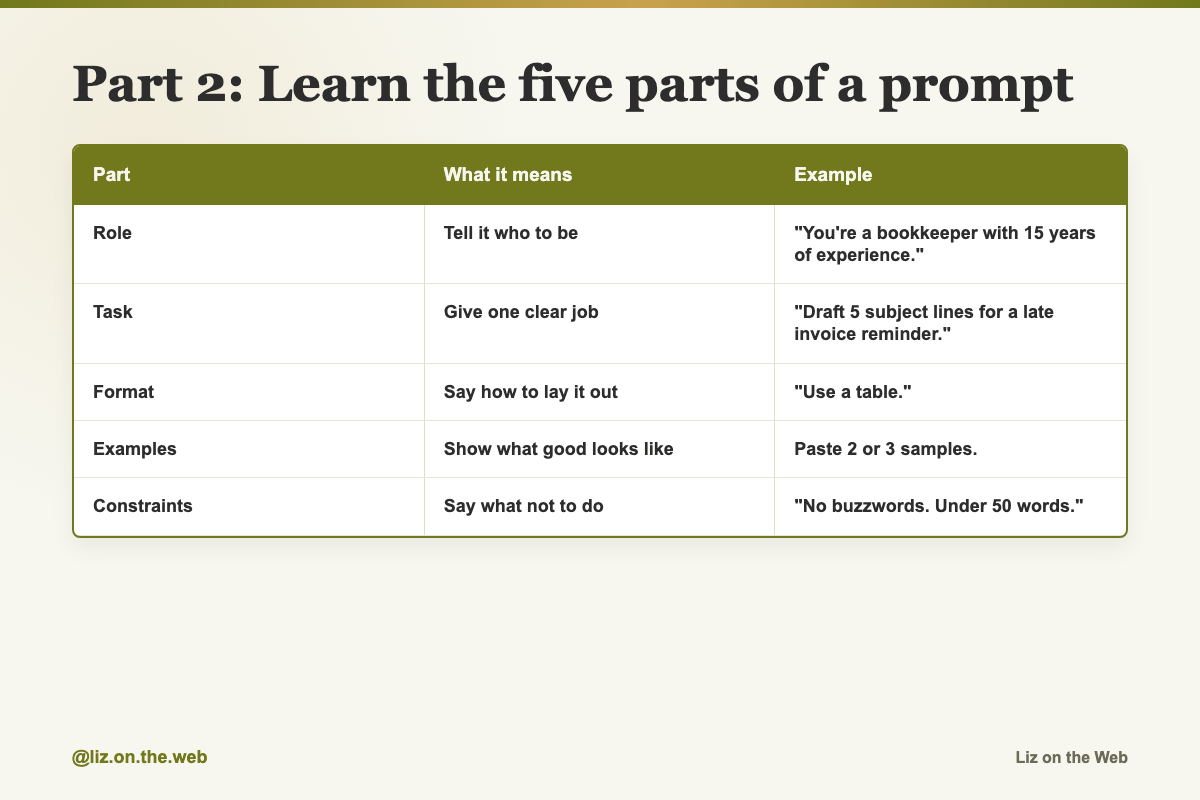
Part / What it means / Example
Role
What it means: Tell it who to be
Example: "You're a bookkeeper with 15 years of experience."
Task
What it means: Give one clear job
Example: "Draft 5 subject lines for a late invoice reminder."
Format
What it means: Say how to lay it out
Example: "Use a table."
Examples
What it means: Show what good looks like
Example: Paste 2 or 3 samples.
Constraints
What it means: Say what not to do
Example: "No buzzwords. Under 50 words."
Then there are two habits that matter as much as the five parts.
Paste in real content. It is strongest when it has something real to work with. Meeting transcripts for action items. Job postings for resume fit. Contracts for a plain English explanation. Sales numbers for patterns. A rough draft for a rewrite. Working on real material beats generating from nothing.
Have a conversation. Your first prompt does not need to be perfect. Ask, read, then adjust. "That's too formal, make it sound like how I actually talk." "Good, but add specific numbers." "Cut this in half." Going back and forth three to five times is normal, not a sign you did it wrong.
And one use most people miss. Use it to think, not only to write. Ask it to poke holes in your plan, argue the other side, list ten things that could go wrong, or compare two options side by side.
Part 3: Your first week, one thing a day
Thirty to sixty minutes a day. One focus per day. If a day is taking 90 minutes, you are going too deep, so finish the action and move on.
Day 1. Sign up and ask something real. Go to claude.ai and make a free account. There are desktop apps for Mac and Windows and a phone app too. Then ask about something you genuinely want to understand or decide. Do not start with "write me an email."
Day 2. Use it on work you already had to do. Not a demo. A real thing on your list. Prepping for a meeting, summarizing a document, planning your week, drafting a reply. Give it the context first.
Day 3. Rewrite one prompt properly. Take a prompt you used on day 1 or 2. Rewrite it with all five parts. Run both versions. Save the before and after so you can see what the difference bought you.
Day 4. Build your first Project. A Project is a workspace that keeps your context across conversations. Steps are in Part 4.
Day 5. Connect one or two tools. Start with your email and wherever your documents live. Steps are in Part 4. Then run one real prompt against each one so you know it works.
Day 6. Try a research tool and a document tool. Next time you would normally search the web, use Perplexity instead and ask in full sentences. Then take a long PDF or report you have been putting off, upload it to NotebookLM, ask for a summary, and ask it three specific questions.
Day 7. Save your profile and write your routine. Put your details into settings so every future chat starts with them, then write down your daily routine and block it on your calendar.
Here is the daily routine to aim for once the week is done:
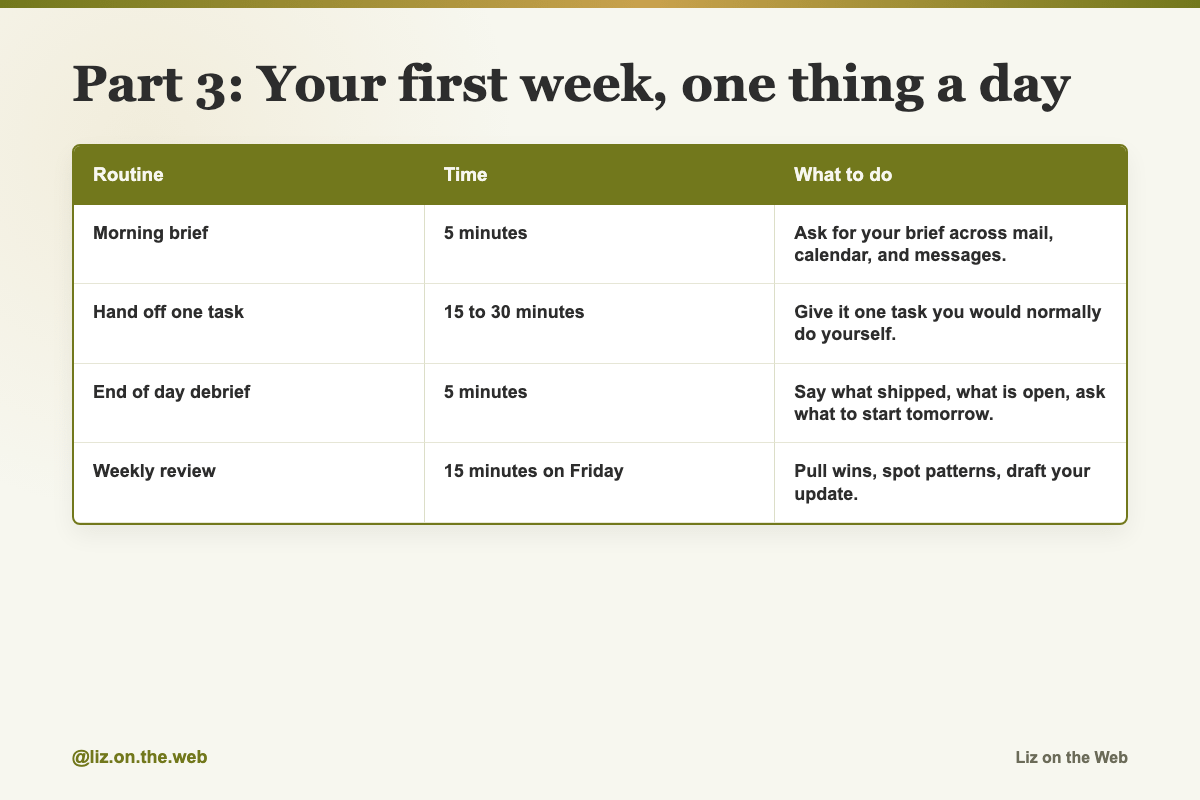
Routine / Time / What to do
Morning brief
Time: 5 minutes
What to do: Ask for your brief across mail, calendar, and messages.
Hand off one task
Time: 15 to 30 minutes
What to do: Give it one task you would normally do yourself.
End of day debrief
Time: 5 minutes
What to do: Say what shipped, what is open, ask what to start tomorrow.
Weekly review
Time: 15 minutes on Friday
What to do: Pull wins, spot patterns, draft your update.
Part 4: The three layers, in order
Do not build all three in one afternoon. Build one, use it, then add the next.
Layer 1. Projects. This is the one that stops you re-explaining yourself.
Go to
claude.ai.Click Projects in the left sidebar.
Click New Project.
Name it for how you think about your work.
My Work,Client Work,Content,Operations.Write 5 to 10 sentences of Project instructions. Cover your role, your communication style, what the Project is for, and your standing rules.
Upload real material: past work you are proud of, templates, brand notes, anything it needs for context.
Add 2 or 3 emails or documents you actually wrote, so it can match your voice.
Every conversation inside that Project picks up the instructions and files automatically.
Layer 2. Connectors. Without them, it only knows what you paste in. With them, it can read from tools you already use, like your mail, your files, your calendar, and your notes.
Go to
claude.ai.Open Settings and find the section for connected apps.
Connect the tools you use most, starting with email and wherever your documents live.
Sign in and grant permission.
Run one real prompt against each one.
There are hundreds of connectors available. You need two.
Layer 3. Cowork. Chat is a conversation. Cowork is a handoff. In chat it replies and waits. In Cowork it makes a plan, works with real files in a folder, and can run tasks on a schedule.
Download or update the Claude desktop app from
claude.com/download. It runs on Mac and on Windows.Open the app and click the Cowork tab.
Click Work in a folder.
Give it one focused project folder. Not your whole drive.
Describe the outcome: what file should exist when it is done, what goes in it, what format.
Review the plan before it runs.
Approve the plan.
For work that repeats, save it as a scheduled task.
Two things to know before you count on this. Cowork needs a paid plan. And scheduled tasks only run while the desktop app is open, so a task set for Monday 8am does nothing if your laptop is shut.
Part 5: When the menus do not match
Two things in this lesson will not match your screen exactly, and that is normal.
Menu names move. One version says Settings then Profile. Another says Settings then Memory. Another says Settings then Integrations, or Settings then Connectors. They are all the same few screens with different labels. The rule: open Settings and look for the section that matches the job. Connected apps for connectors. Instructions or profile or memory for telling it about you. Do not assume a feature is missing because a word changed.
Free and paid keeps shifting. Sources disagree about which features are free. Chat is free. Projects and connectors are usually available on the free plan, though limits vary. Cowork and scheduled tasks need a paid plan. The rule: check your own account screen before you believe any article, including this one.
Part 6: The question to ask before every request
Before you hit enter, ask yourself one thing. Am I describing a task, or am I describing an outcome?
If your prompt does not say what finished looks like, it has to guess. So say the file type, the length, where it should go, the format, and what goes in it. "Create a 1-page summary as a Word doc in /outputs" is a finished description. "Summarize this" is not.
Copy and paste
Role line
Put a line like this at the top of a prompt to give it a point of view.
You are a bookkeeper with 15 years of experience helping small shops keep clean books.Weak prompt versus strong prompt
Run both. The gap is the whole lesson.
Write me an email.I'm a project manager at a tech startup.
I need to email my team about a deadline change.
The original deadline was Friday.
The new deadline is next Wednesday.
The team is stressed and I want the tone to be calm and reassuring.
I usually write in a direct but friendly way.
Write the email.Constraints block
Paste this at the end of any writing request to kill the corporate voice.
Don't use corporate buzzwords.
Don't start with "I hope this email finds you well."
Don't use bullet points.
Keep it under 150 words.
Day 1 starter prompts
Use either one for your very first conversation.
Explain how [topic] works.Help me think through [decision].Learning coach instructions
Paste this into a Project called AI Fluency on day 1, so the whole week builds on itself.
You're my AI fluency coach for the next 7 days. Default to plain English. Reference what we've covered so far when you teach me new things.Project instructions, short version
Paste this into a new Project and fill in the brackets. Good for day 4.
You're my daily co-pilot. I'm a [role] at [company/business]. My main goals this quarter are [goals]. My voice is direct, no buzzwords. When you draft anything for me, mirror my voice from the writing samples I've uploaded.Project instructions, full version
A worked example of the 5 to 10 sentences. Swap the details for yours.
I run a small bookkeeping business with two employees.
My communication style is direct, with no filler and no corporate speak.
This Project is for client-facing work.
Always use formal language in client communications.
When writing emails, lead with the key point.
Never include more than 3 action items in a single message.
When you're unsure about tone, ask before drafting.
Work rules to add to any Project
Small lines that change every answer. Add your own.
I prefer bullet points over paragraphs.
Never use the word "synergy."
Keep things under 200 words unless I ask for more.
Connector test prompts
Run one of these the moment a connector is switched on, to prove it works.
Pull my last 3 emails from Sarah.
What's on my calendar tomorrow?
Search Notion for the Q3 strategy doc.
Connected briefing
Use this once two or three tools are connected and you want a real status check.
Check my Gmail, read the Notion board for Project Phoenix, and give me a 5-bullet briefing on where things stand, what needs a response today, and whether we're on track for the Friday deadline.Morning brief
Your five minute start to the day.
Run my morning brief. Pull from Gmail and Slack and Calendar. Surface the 3 most important things, draft replies for the routine ones, and prep me for today's meetings.End of day debrief
Your five minute close.
Here's what I shipped today: (list). Here's what's open: (list). What should I tackle first tomorrow?The question before you prompt
Ask yourself this before you hit enter.
Am I describing a task, or am I describing an outcome?Defining done
Add a line like this whenever you want a file, not a chat reply.
Create a 1-page summary as a Word doc in /outputs.Turning a repeat task into a Skill
Paste your written-out task instructions, then this line.
Turn this into a Skill I can trigger with one sentence.A scheduled task
Save something like this once the desktop app and Cowork are set up.
Every Monday at 8am:
Read the project files in /active-projects and my Notion boards.
Check Gmail for anything from clients over the weekend.
Create a weekly priorities doc in /briefings with the top 5 things I need to move this week.
Flag any client messages that need a reply today at the top.
Five thinking prompts
Use these when you want help thinking, not writing. Read the caution in Watch out before pasting contracts or offers.
Here's what I'm thinking about doing. Give me the 5 strongest reasons to do it and the 5 strongest reasons not to.Based on this, what are they doing better than us and where are they vulnerable?Here are 6 months of sales data. What trends do you notice that I should be paying attention to?I need to tell my team that we're cutting a project they care about. Help me think through the best way to frame this, anticipate their objections, and prepare responses.Tell me what I should be paying attention to that I might be missing.Four research questions for day 6
Ask these in full sentences, the way you would ask a person.
What is [Company X]'s pricing model and how does it compare to [Company Y]?Notion vs. Monday.com vs. Asana - which is best for a 10-person marketing team?Explain the new DOL overtime rule changes for 2026 and how they affect salaried employeesIs it better to max out my 401k or pay off my student loans first? I make $85k and owe $40k at 5.5%Five things to build in one chat
Ask for any of these and you get a working tool you can click, not a description of one.
Build me a monthly budget tracker where I input my income and expenses by category and it shows me where my money is going with a visual breakdown.Build me a project status dashboard where I can list my active projects, their deadlines, their status, and see which ones are at risk.Build me a weekly meal planner where I can drag meals between days, add grocery items, and generate a shopping list.Build me a client pipeline tracker with stages (lead, proposal, negotiation, closed) where I can move clients between stages and see my total pipeline value.Build me a savings goal calculator where I enter my target amount, my current savings, and my monthly contribution - and it shows me exactly when I'll hit my goal with a countdown.Fixing what it built
If the first version is wrong, say so in plain words. It updates live.
Change the colors.Add a column for notes.The full setup prompt
The big one. Paste this when you are ready to have your whole setup written for you in one go. It is long on purpose.
I want to set up Claude properly for vibe working, delegating outcomes, not managing tasks.
Help me build the full setup for my role.

My role:
[job title and 2-3 sentences on what you actually do day to day]

My industry:
[e.g. marketing, finance, operations, healthcare, legal]

Tools I use most:
[e.g. Gmail, Notion, Slack, Google Drive, Salesforce]

What eats most of my time right now:
[2-3 things that take too long or happen too often]

Step 1: Write my Project instructions.
Based on my role and context, write a complete Project instruction set I can paste into a new Claude Project right now.
It should cover: who I am and what I do, my communication style and tone, standing rules Claude should always follow in this Project, what "good output" looks like for my work, and anything Claude should always ask before doing.

Step 2: Tell me which connectors to set up first.
Given the tools I listed, which 2-3 connectors should I set up this week for maximum impact?
For each, give me one specific prompt I could run the moment it's connected that would immediately save me time.

Step 3: Write me my first Cowork task.
Based on what's eating most of my time, write a complete Cowork task brief I can paste in right now.
Include the specific outcome, file format, what to do with edge cases, and a request to show me the plan before executing.

Step 4: Give me my first outcome-delegation prompt.
Write an example of what a well-structured outcome-delegation prompt looks like for one of the tasks I described.
It should give Claude full context, a clear outcome, and everything it needs to complete the work without coming back to ask me questions.

Make everything specific to my role.
The goal is to walk away from this with a setup I can use today.
Watch out
Starting with "write me an email"
It is the worst possible first task. No context, and generating from nothing is the hardest thing to do well. Start with something to think about or something to analyze.
Judging AI by one bad experience
Tools move fast and models change every few months. If you tried something once and it was flat, the fix is usually more context, not a better product.
Trying to build all three layers in one afternoon
Projects, connectors, and Cowork in the same sitting is how people burn out and use none of them. One Project this week. Use it. Then add the next layer.
Setting Project instructions but uploading nothing
Instructions help. Real examples help more. Upload three to five pieces of work you are proud of, like templates, past drafts, or client briefs.
Stopping after one answer you did not like
Sending one prompt, disliking the first reply, and giving up is the most common way people decide AI is useless. Push back, adjust, and go around three to five times.
Connecting your inbox with no thought about privacy
Once your mail, calendar, and files are connected, real client details, contracts, and personal messages become readable. Check your employer's policy first. Connect the account you are willing to expose, and know that you can disconnect it again in the same settings screen.
Giving Cowork your whole drive
Cowork reads and writes real files on your computer. Give it one focused project folder, and keep a backup of anything you cannot afford to lose.
Assuming a scheduled task ran
Scheduled tasks only run while the desktop app is open. Check the output before you rely on it.
Uploading contracts, offers, and financial details without thinking
Some of the prompts here invite you to paste in a contract, a job offer, or your loan numbers. That is real personal information going to a company's servers. Decide case by case, strip out names and account numbers when you can, and remember that AI is not a lawyer or a licensed financial advisor. Use the answer to prepare your questions, not to make the decision.
Skipping the profile step
The last step of the week is the one that makes every future chat better. Do not stop at day 6.
Check yourself
[ ] I created a free account and asked something real, not "write me an email".
[ ] I used AI on one task I actually had to do this week.
[ ] I rewrote one prompt with all five parts and ran both versions.
[ ] I built one Project with my role, my voice samples, my priorities, and my rules.
[ ] I connected at least one tool and tested it with a real prompt.
[ ] I used a research tool instead of a search engine at least once.
[ ] I uploaded one long document and asked it three questions.
[ ] I saved my details in settings so new chats start with context.
[ ] I wrote my daily routine down and blocked it on my calendar.
Do this now
Go to claude.ai, make a free account, and ask it to help you think through one real decision you are sitting on. Give it the situation before you ask for the answer.
Keep going
Next in AI for Entrepreneurs:
Part 5: The honest picture: energy, tiredness, attention, and where this goes
Part 6: Models explained, and why one favorite is a trap
Part 7: The four Claudes, and which one you actually want
Every part of this course sits in reading order in the free AI for Entrepreneurs course outline.
This part is free, start to finish. Subscribing keeps the rest of the course coming and opens the paid parts.
Tell me in the comments which day of the seven you are on, and I will point you at the right next part.