
Most people get bad AI images because they ask for a finished result too fast. They upload a photo, type one vague sentence, and hope the tool understands the style, layout, text, use case, and mood. That is how you get a pretty image that does not help people trust you.
The better way is to give the tool a smaller job. Pick one image style. Tell it what the before photo is. Tell it what the after image should become. Then give it exact layout rules and exact text. That is how you turn a plain photo into content that feels personal enough to stop the scroll and clear enough to save.
This tutorial walks through six individual image prompts from my Liz on the Web example set. Each one has a clear before image, a clear after image, and a copyable prompt. You can use these as single images, Pinterest graphics, lead magnet examples, social post images, or practice prompts inside ChatGPT Images. The point is not to make random pretty images. The point is to make images that feel useful, human, and easy to believe.
Before You Generate Anything
Start with one clear photo. The photo should show the person, product, desk, outfit, or object clearly enough for the tool to understand it. It does not need to look professional. A normal phone photo works fine as long as the main subject is easy to see.
Then choose one visual system before you write the image prompt. For the examples below, I used the Liz on the Web style: cream scrapbook paper, olive green accents, warm gold details, black readable text, taped photo cards, handwritten arrows, small doodles, and a clean before-to-after layout. You can change the colors and footer for your own brand, but do not change everything at once.
Paste this master style prompt first. Then add the single image prompt you want to make. This keeps the outputs from drifting all over the place.
I am making a 4:5 AI image in the Liz on the Web style.

Use this visual style:

Cream scrapbook paper background.
Olive green and warm gold accents.
Black readable text.
Taped photo cards.
Handwritten before and after labels.
Handwritten arrows.
Small doodles, like hearts, sparkles, flowers, or tiny lines.
A torn olive paper shape near the bottom.
Footer text: @liz.on.the.web and LIZ ON THE WEB.

The image should feel warm, useful, and creator-made.
It should not look like a corporate template.
All text must be baked into the image.
Make the text large enough to read on a phone.
Do not add extra random words.
Do not use blue ChatGPT colors.
Do not use fake logos.
Do not use watermarks.
Image 1: A Day In My Life
This format turns a regular photo into a mini creator-life graphic. It works well when you want to make a personal brand image from a plain selfie, desk photo, work photo, coffee photo, or behind-the-scenes photo. The after image should feel like a small content asset, not just a prettier version of the same picture.
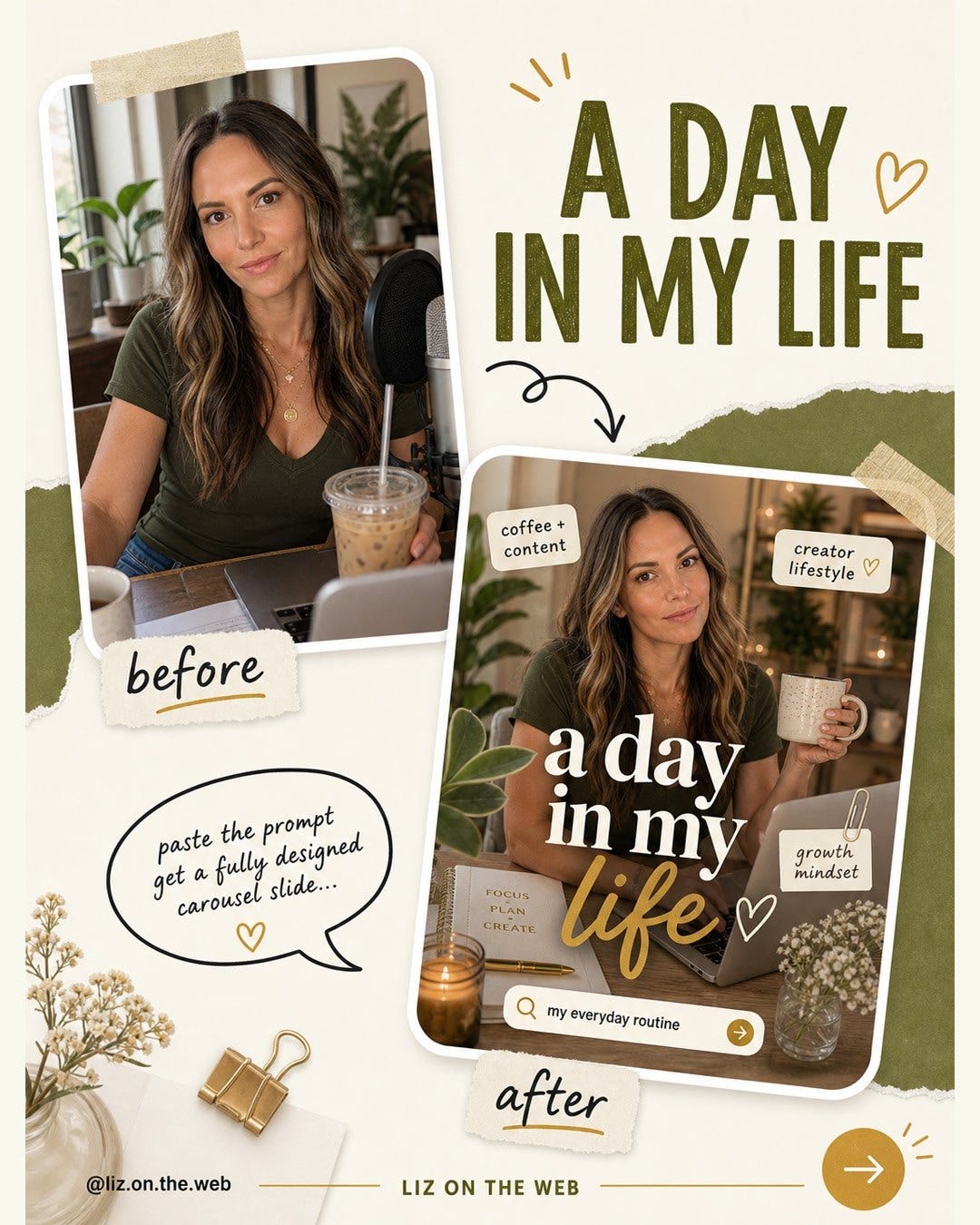
Use this prompt:
Create a 1080x1350 image in the same Liz on the Web scrapbook style.

Main headline text must be exact:
A DAY
IN MY LIFE

Use the uploaded photo as the before image.

Layout:
Put a taped before photo card in the upper left.
Write the label before under it.
Put a black curved arrow pointing from the before card to the after card.
Put the after card in the lower right.
Add a speech bubble near the lower left.

Speech bubble text must be exact:
Use real day details so the image feels personal, not generic.

After card title must be exact:
a day in my life

After card schedule text must be exact:
7:30 coffee + inbox
9:00 write the post
11:00 client call
1:00 film 3 clips
3:00 edit images
5:00 plan tomorrow

The after card should look like a small creator graphic made from the same person and photo style. Keep the person connected to the source photo. Make the schedule feel like a real workday for a creator, not a fake aesthetic list. Keep the layout warm, clean, and easy to read.

Footer text must be exact:
@liz.on.the.web
LIZ ON THE WEB

Do not add extra words. Keep all text readable.
If the result looks too random, repair it before you move on. Ask the tool to make the after card feel more connected to the before photo. Mention the person, outfit, photo angle, and creator style so it does not invent a totally different image.
Make the after card look more connected to the before photo. Keep the same person, same outfit feeling, and same warm creator style. Make the before and after labels larger.Image 2: iPhone Notifications
This format turns a plain idea into a phone lock screen image. It works because the tool has a very clear object to build: a phone screen with a time and notification. The more specific the object is, the easier it is to control the final image.
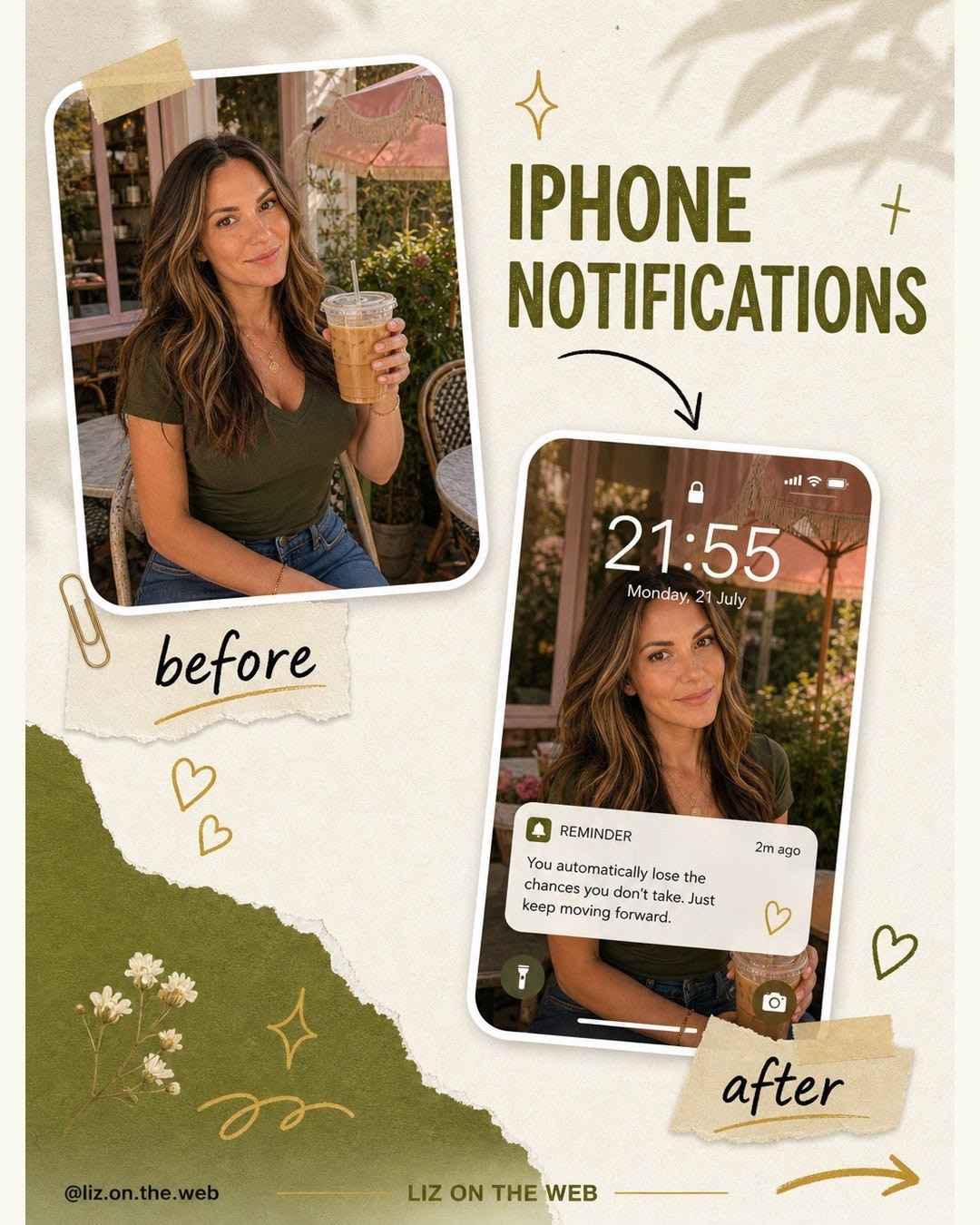
Use this prompt:
Create a 1080x1350 image in the same Liz on the Web cream, olive, gold, scrapbook style.

Main headline text must be exact:
IPHONE
NOTIFICATIONS

Use the uploaded photo as the before image.

Layout:
Put a taped before photo card in the upper left.
Write before under the before card.
Put the headline in the upper right.
Use a black arrow pointing down to the after image.
Make the after image an iPhone lock screen mockup.
Write after under the phone.

Phone lock screen time must be exact:
21:55

Notification text must be exact:
REMINDER
Add one real detail before you post.

Speech bubble text must be exact:
Make the image feel like a helpful reminder people would save.

Footer text must be exact:
@liz.on.the.web
LIZ ON THE WEB

Do not add random app logos. Do not add extra text. Keep it clean and readable.
If the phone screen text comes out messy, do not keep regenerating the full image. Tell the tool to clean up only the phone screen. This usually keeps the overall style while fixing the weak part.
Clean up the phone screen. Keep only one notification. Make the time and notification text readable. Remove any extra app icons or random words.Image 3: Notes Box
This format turns a messy prompt into a checklist. It is useful when you want to teach people how to improve their prompts without writing a long explanation. The before side shows the bad prompt. The after side shows the clearer version.
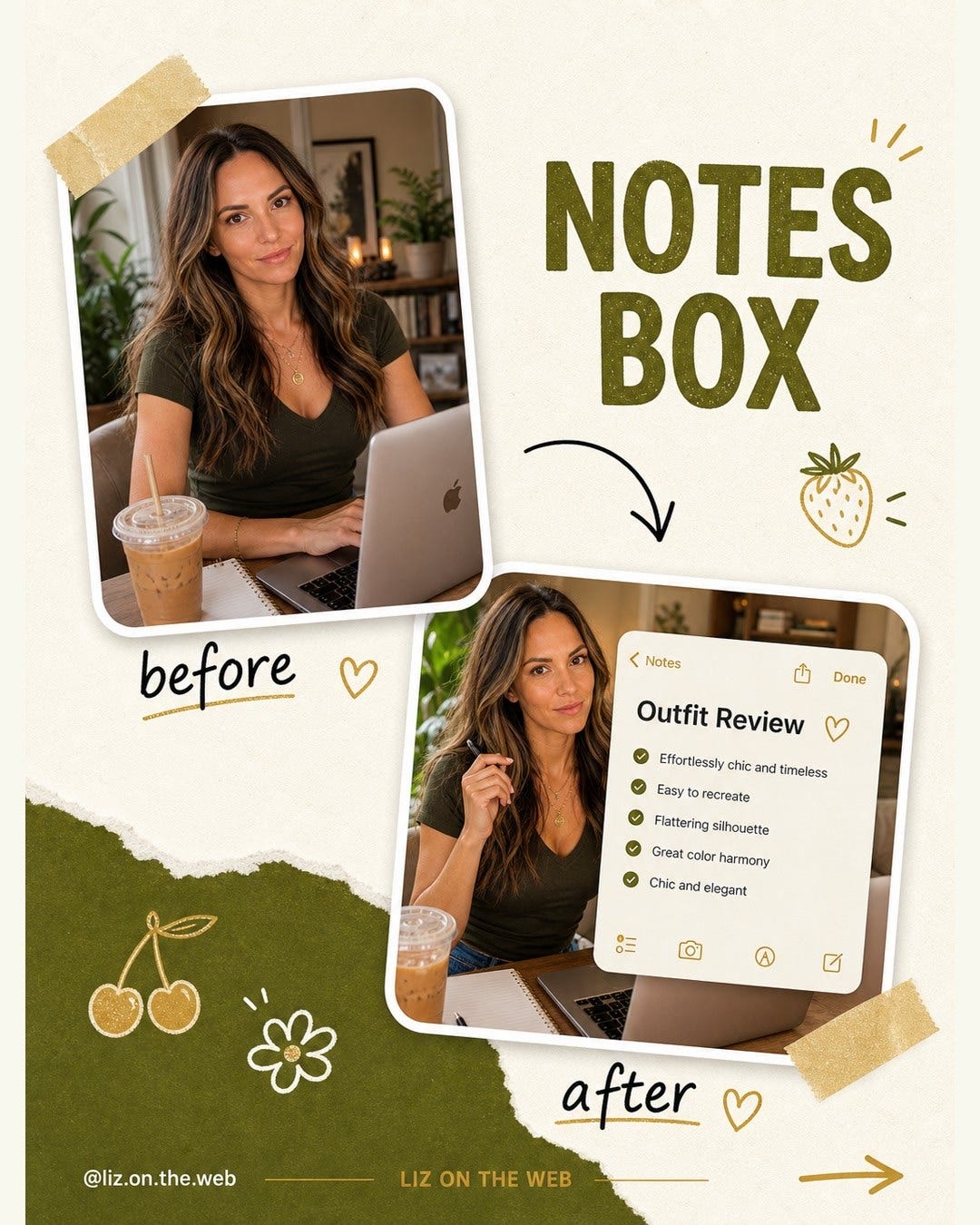
Use this prompt:
Create a 1080x1350 image in the same Liz on the Web scrapbook style.

Main headline text must be exact:
NOTES BOX

Use the uploaded photo as the before image.

Layout:
Put a taped before photo card in the upper left.
Write before under it.
Put the headline in the upper right.
Use a black arrow pointing to the after card.
Make the after card look like a clean notes app checklist.
Write after under the after card.

Before card text must be exact:
Before prompt
Make me a viral image. Make it pretty.

Speech bubble text must be exact:
Turn a messy idea into a checklist people can trust.

After card title must be exact:
Prompt Review

Checklist text must be exact:
Real detail added
Audience is clear
One useful lesson
Phone text is readable
Final use is named

Footer text must be exact:
@liz.on.the.web
LIZ ON THE WEB

Do not add extra words. Keep the checklist easy to read.
If the checklist text becomes tiny, the image loses the whole point. Ask for a larger card and fewer tiny details. The reader should understand the lesson without zooming in.
Make the checklist card larger. Remove any tiny text. Keep only the title and five checklist lines. Make the before and after labels easy to read.Image 4: iOS Style Image
This format turns a plain photo into a soft app-style workflow board. It is good for tutorials, process posts, AI workflows, content systems, and simple step visuals. The trick is to ask for soft cards and a workflow board, not a full app design.
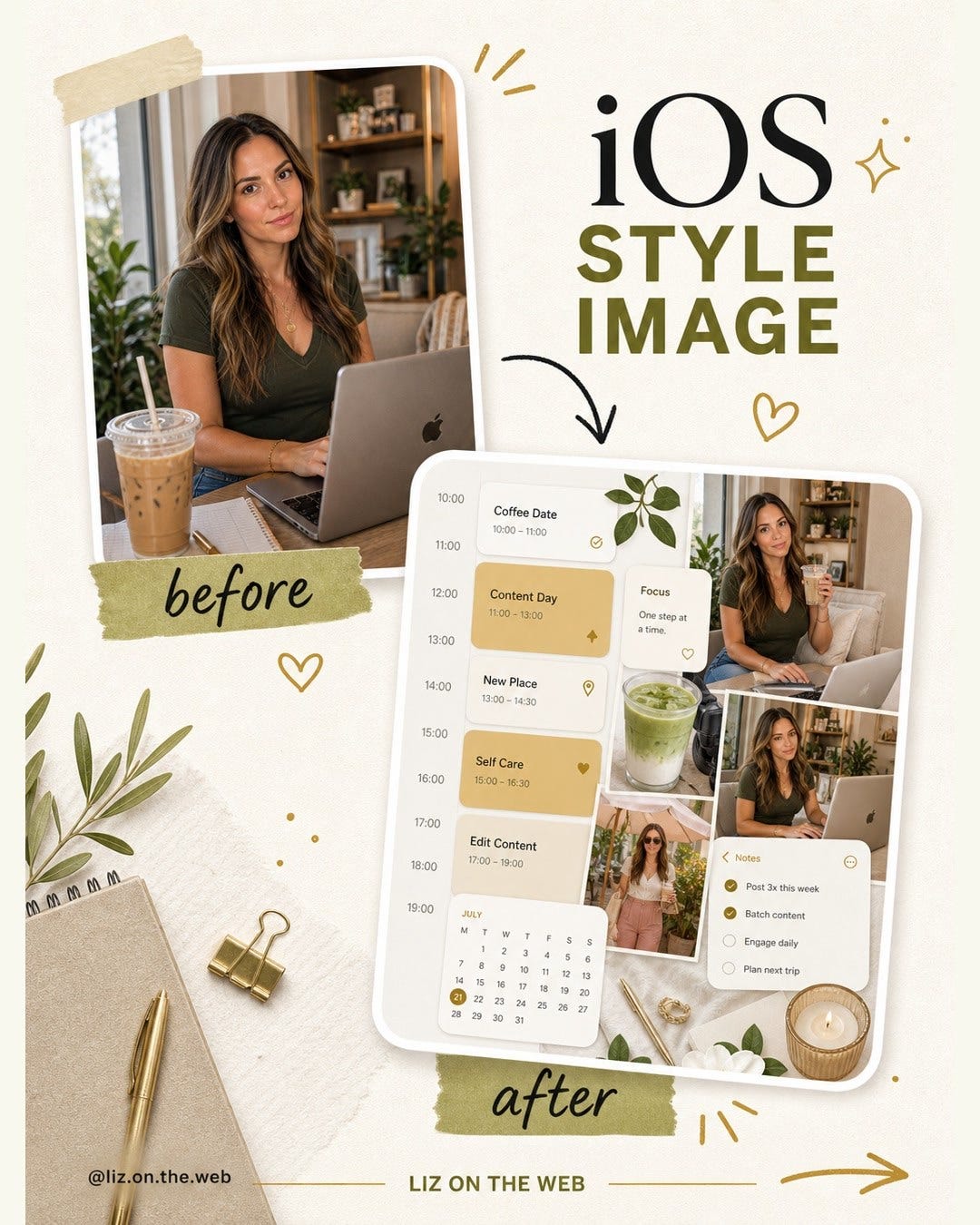
Use this prompt:
Create a 1080x1350 image in the same Liz on the Web cream, olive, gold, scrapbook style.

Main headline text must be exact:
iOS
STYLE
IMAGE

Use the uploaded photo as the before image.

Layout:
Put a taped before photo card in the upper left.
Write before under it.
Put the headline in the upper right.
Use a black arrow pointing to the after image.
Make the after image look like a clean iOS style workflow board with soft widget cards.
Write after under the after image.

Speech bubble text must be exact:
Ask AI to make this a clean iOS style workflow board with soft cards.

After card title must be exact:
AI Workflow

After card text must be exact:
Real photo
Personal detail
Useful lesson
Readable text
Post

Footer text must be exact:
@liz.on.the.web
LIZ ON THE WEB

Do not add extra words. Keep it soft, clean, and readable.
If it starts to look like a real app screenshot, pull it back into the creator graphic style. You want the iOS feel, but you still want the scrapbook system around it so it matches the rest of the images.
Make this feel more like a creator graphic, not a real app screen. Keep the soft iOS card style, but add scrapbook paper, tape, and handwritten labels.Image 5: Monthly Recap
This format turns loose notes into a visual recap. Use it when you have wins, screenshots, saved ideas, content results, or life moments that need to become one neat image. The before side can be messy because the whole point is that the after side organizes it.
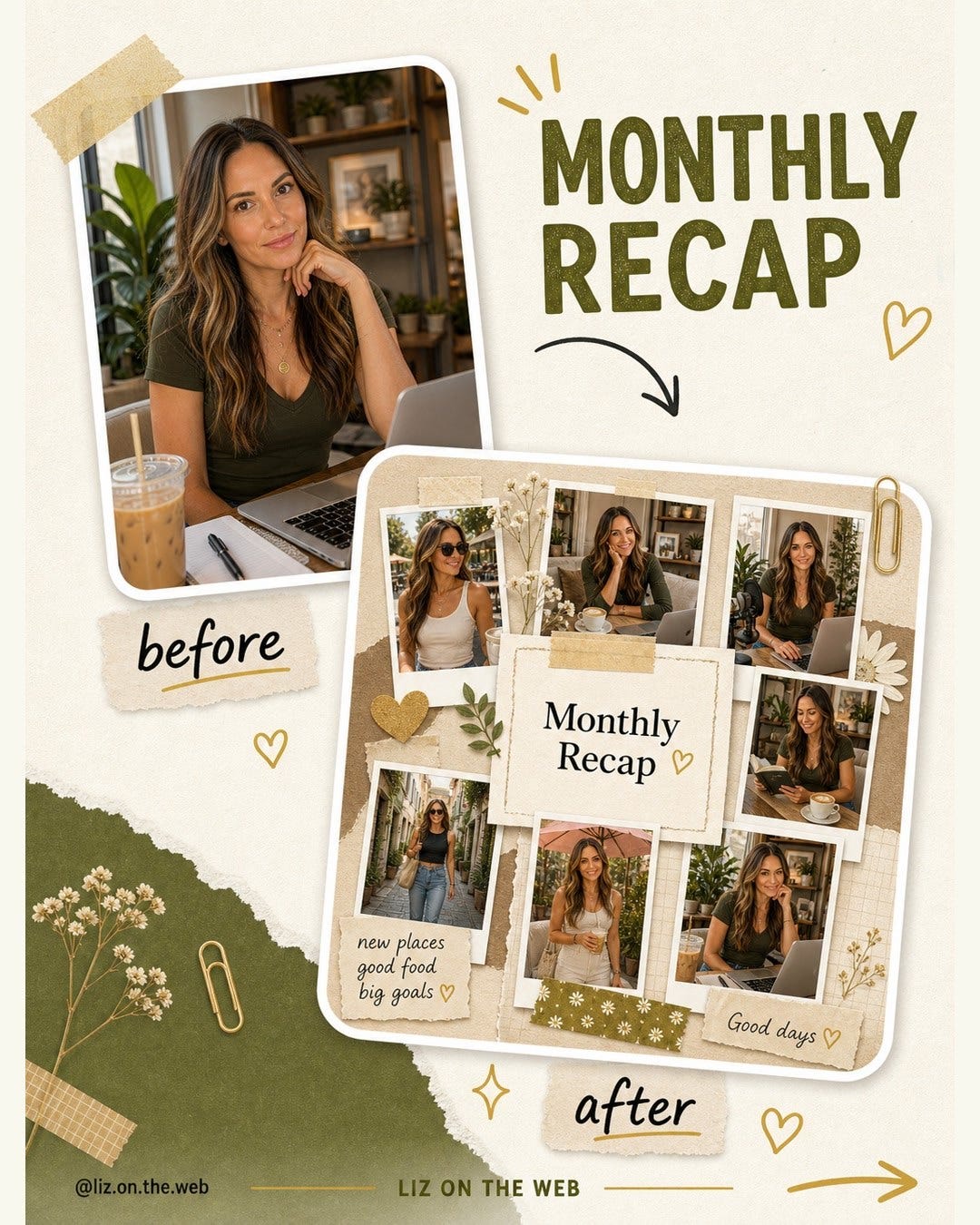
Use this prompt:
Create a 1080x1350 image in the same Liz on the Web scrapbook style.

Main headline text must be exact:
MONTHLY
RECAP

Use the uploaded photo as the before image.

Layout:
Put a taped before photo card in the upper left.
Write before under it.
Put the headline in the upper right.
Use a black arrow pointing to a collage-style after board.
The after board should have small photo cards and a paper note in the center.
Write after under the after board.

Before card text must be exact:
before: notes
saved posts, wins, and screenshots

Speech bubble text must be exact:
Give AI the real wins and lessons from your month.

After board title must be exact:
Monthly Recap

After mini card text must be exact:
18 posts made
6 images tested
3 prompts reused
1 style saved

Footer text must be exact:
@liz.on.the.web
LIZ ON THE WEB

Do not add extra words. Keep the collage neat and readable.
If the collage gets too cluttered, simplify it. A recap image should feel collected, not chaotic. Ask for fewer cards, a larger title, and a clearer before-to-after path.
Make the collage cleaner. Use fewer mini cards. Keep the Monthly Recap title large. Make the before and after flow easy to understand.Image 6: Best Of Month
This format is for sorting your favorite outputs into one shareable image. It is close to a recap, but it feels more curated. Use it for your best prompts, best photos, best ideas, best tools, best content wins, or best AI outputs from a month.
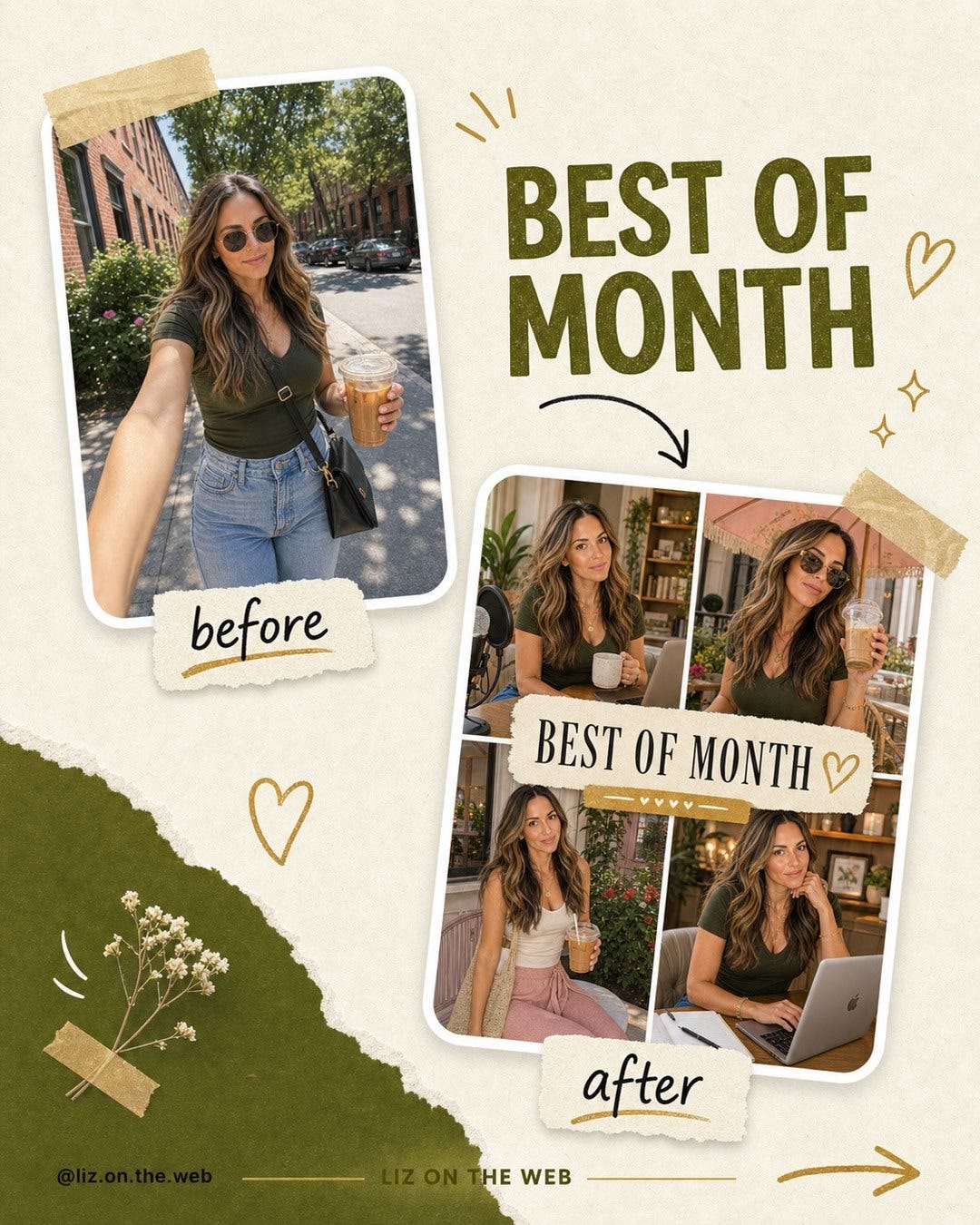
Use this prompt:
Create a 1080x1350 image in the same Liz on the Web cream, olive, gold, scrapbook style.

Main headline text must be exact:
BEST OF
MONTH

Use the uploaded photo as the before image.

Layout:
Put a taped before photo card in the upper left.
Write before under it.
Put the headline in the upper right.
Use a black arrow pointing to an after collage in the lower right.
The after collage should feel like a clean monthly favorites board.
Write after under the collage.

Before card text must be exact:
Saved outputs
screenshots, replies, AI answers

Speech bubble text must be exact:
Sort the useful stuff into a best-of-month image people can save.

After board title must be exact:
BEST OF JULY

After board text must be exact:
Post that got saved
Prompt I reused
Reply that taught me something
Workflow I kept

Footer text must be exact:
@liz.on.the.web
LIZ ON THE WEB

Do not add extra words. Keep it easy to read.
If the after board is too small, make the tool choose readability over decoration. Most weak AI graphics have too many tiny elements and not enough hierarchy.
Make the after board larger and simpler. Keep only the BEST OF JULY title and four short items. Keep the arrow and labels clear.How To Use These Prompts
Do not run all six prompts at once. Pick one image style first. Upload your photo, paste the master style prompt, then paste the one image prompt you want to test. After the first result, use a repair prompt before you try another style.
The repair step is what makes the image usable. If the text is wrong, fix the text. If the layout is busy, simplify the layout. If the person looks wrong, tell the tool to stay closer to the source photo. If the after card is too small, make that card larger. Do not ask the tool to "make it better" because that gives it too much room to guess.
Here is the quick check before you save the image:
Can I read the main text on a phone?
Does the before image connect to the after image?
Are the before and after labels clear?
Did the tool add random words?
Does the image still match the brand style?
Does the image feel personal enough to trust?
Is the after card big enough to understand fast?
If the answer is no, repair the image before you move on. A good image prompt is not one perfect sentence. It is a clear first prompt plus a good repair pass.
The Simple Version
Pick one photo and one image format. Tell AI what the before image is. Tell AI what the after image should become. Give it the exact text, the exact layout, and the exact brand style. Then fix the weak part before you make the next image.
That is the whole system. Smaller prompt, clearer job, better image.
More Links
Read the free LOTW resource page: FREE Resources, Guides, Kits, Tutorials and More
Subscribe free: lizontheweb.substack.com
Try PRISM: prism-app.com
Start with ChatGPT: chatgpt.com
Insane value love it
Liz, thank you so much for sharing your brilliance! As a 59 year old lawyer turned founder of a coaching mini-empire, I appreciate what you are doing and I’m taking notes!